转载: HTML Tips - Marko Denic - Web Developer
In this article, I will share with you some very useful HTML Tips. Enjoy!
But first, what is HTML? Hypertext Markup Language (HTML) is the standard markup language for documents designed to be displayed in a web browser. It can be assisted by technologies such as Cascading Style Sheets (CSS) and scripting languages such as JavaScript.
# The loading=lazy attribute
Performance tip. You can use the loading=lazy attribute to defer the loading of the image until the user scrolls to them.
1 | <img src="image.jpg" loading="lazy" alt="Alternative Text" /> |
# Email, call, and SMS links:
1 | <a href="mailto:{email}?subject={subject}&body={content}"> Send us an email </a> |
# Ordered lists start attribute.
Use the start attribute to change the starting point for your ordered lists.
1 | <ol start="11"> |
# The meter element
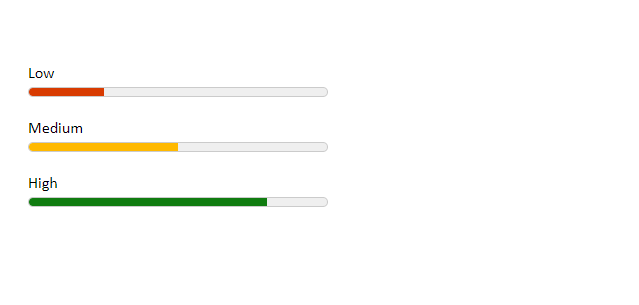
You can use the <meter> element to display quantities. No JavaScript/CSS needed.
1 | <label for="value1">Low</label> |
1 | body { |
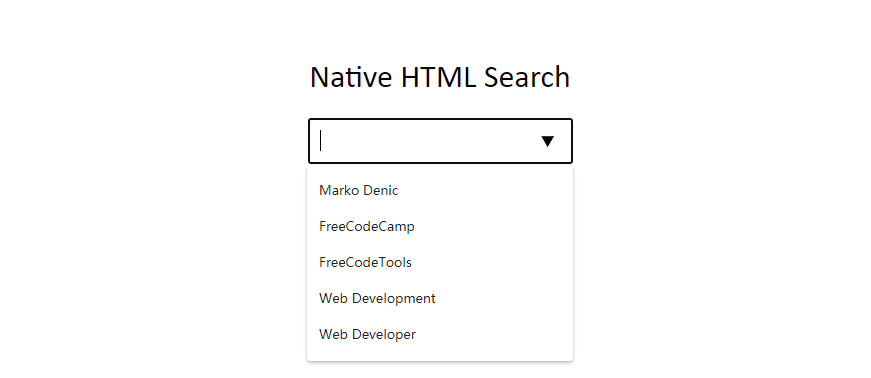
# HTML Native Search
1 | <div class="wrapper"> |
1 | .wrapper { |
# Fieldset Element
You can use the <fieldset> element to group several controls as well as labels ( <label> ) within a web form.
1 | <form> |

# Window.opener
Pages opened with target="_blank" allow the new page to access the original’s window.opener . This can have security and performance implications. Include rel="noopener" or rel="noreferrer" to prevent this.
1 | <a href="https://markodenic.com/" target="_blank" rel="noopener"> |
# Base Element
If you want to open all links in the document in a new tab, you can use <base> element:
1 | <head> |
# Favicon cache busting
To refresh your website’s favicon you can force browsers to download a new version by adding ?v=2 to the filename.
This is especially helpful in production to make sure the users get the new version.
1 | <link rel="icon" href="/favicon.ico?v=2" /> |
# The spellcheck attribute
Use the spellcheck attribute to define whether the element may be checked for spelling errors.
1 | <label for="input1">spellcheck="true"</label> |
# Native HTML sliders
You can use <input type="range"> to create sliders.
1 | <label for="volume">Volume: </label> |
1 | const volume = document.getElementById('volume'); |
# HTML Accordion
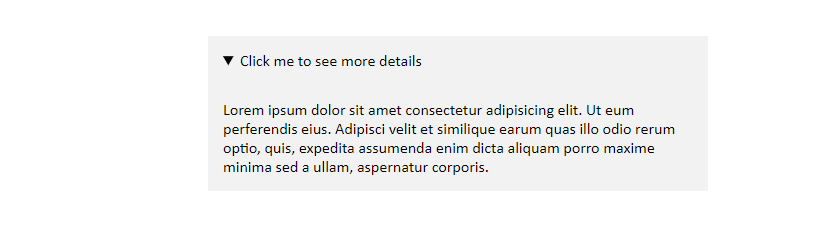
You can use the details element to create a native HTML accordion.
1 | <div class="wrapper"> |
1 | .wrapper { |
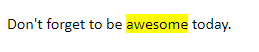
# mark tag
You can use the <mark> tag to highlight text.
1 | <p>Don't forget to be <mark>awesome</mark> today.</p> |
# download attribute
You can use the download attribute in your links to download the file instead of navigating to it.
1 | <a href="path/to/file" download> Download </a> |
# Performance tip
Use the .webp image format to make images smaller and boost the performance of your website.
1 | <picture> |
# Video thumbnail
Use the poster attribute to specify an image to be shown while the video is downloading, or until the user hits the play button.
1 | <video poster="path/to/image"></video> |
# input type="search"
Use the type="search" for your search inputs and you get the “clear” button for free.
1 | <body> |

# Comments
# input autocomplete
When submit form, the Browser will record the history of the input. The next time you focus on the same type of input will popup the history for autofill. If your website doesn’t want the Browser to do this, you can set autocomplete="off" .
1 | <form> |
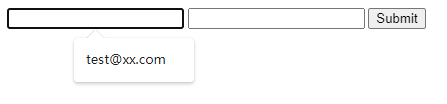
If you are a user, you can clean the history as below:
- Deleting unwanted entries one at a time. Reference How to Delete Autocomplete History
- Open Google Chrome.
- Locate the field where the unwanted item is being autocompleted. This field can be any search box or the address bar.
- Start typing the unwanted phrase or web address, or press the down arrow key until it is highlighted.
- Press Delete. If the entry is not removed, press Shift+Delete.
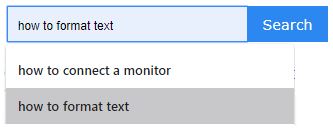
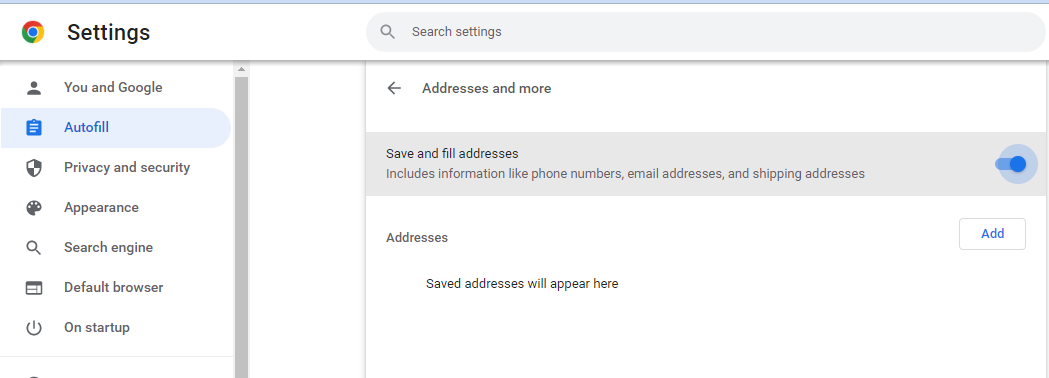
- Close Autofill function.