历史传承的意志,时代的浪潮,人的梦想,这些都是挡不住的,只要人们继续追求自由的解答,这一切都将永不停止。 - 海贼王
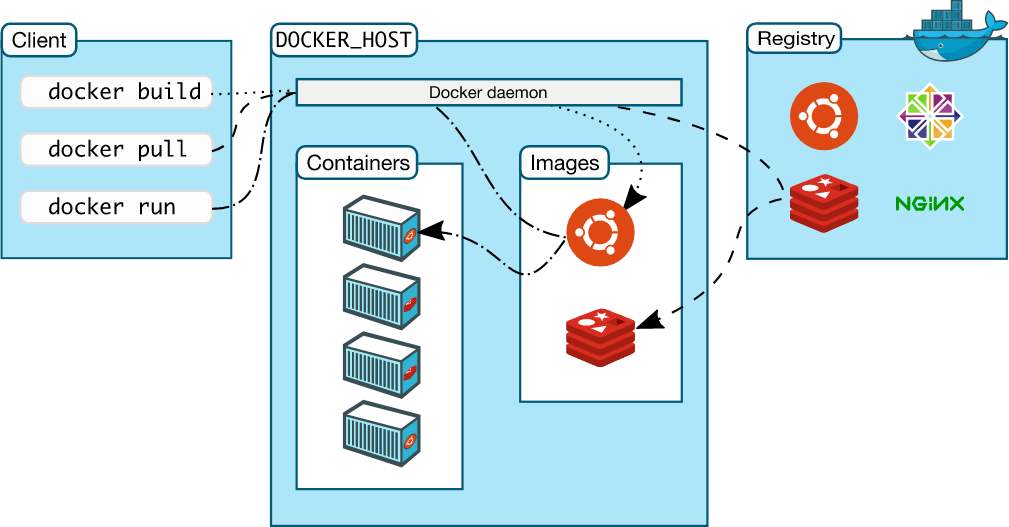
# Architecture
# Common Commands
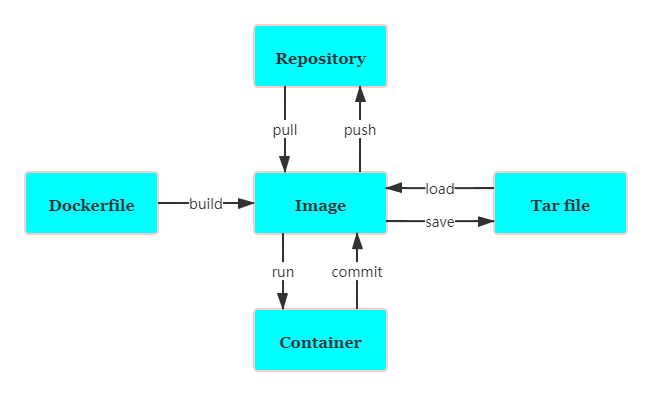
| 命令 | 含义 |
|---|---|
| docker pull | 获取 image |
| docker build | 创建 image |
| docker images | 列出 image |
| docker rmi | 删除 image |
| docker run | 运行 container,如果本地没有会从远程仓库拉取 |
| docker ps | 列出 container |
| docker ps -a | 列出所有 container 包括停止的历史 container |
| docker stop | 停止 container |
| docker rm | 删除 container |
| docker cp | 在 host 和 container 之间拷贝文件 |
| docker commit | 保存 container 改动为新的 image |
| docker inspect nginx | 检查 container 信息 |
| docker exec -it nginx /bin/bash | 进入 container |
example
1> docker run -p 8080:80 -d nginx 运行 nginx, -p 指定端口映射,外部 8080 端口映射到 nginx 80 端口,-d 以守护进程的方式运行
2> docker ps
CONTAINER ID IMAGE COMMAND CREATED STATUS PORTS NAMES
dc514a87b6f7 nginx “nginx -g 'daemon of…” 22 seconds ago Up 20 seconds 0.0.0.0:8080->80/tcp confident_brahmagupta
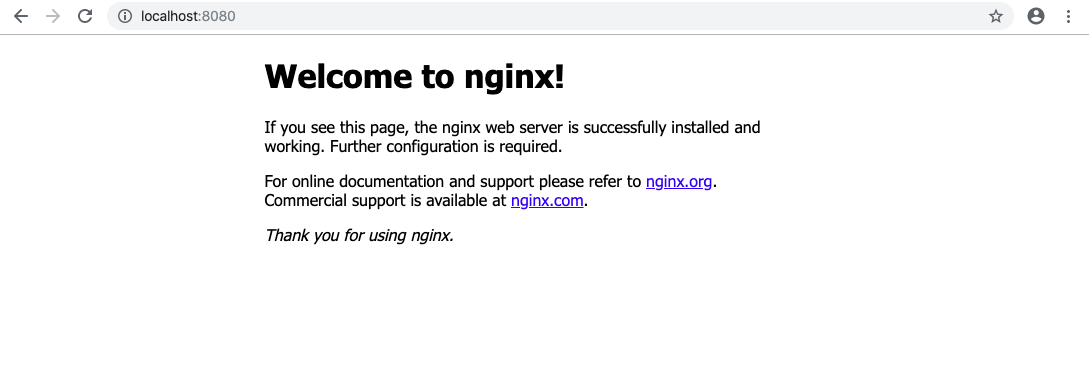
3> docker cp index.html dc514a87b6f7://usr/share/nginx/html 复制本地 index.html 到 nginx html 文件夹下
1 | <!--index.html--> |
4> docker commit -m 'hello' dc514a87b6f7 hello-docker , hello-docker 是 image 的 tag。
对 container 所做的修改不会保存,需要手动提交为新的 image,否则下次再运行还是更改之前的。
5> docker images
REPOSITORY TAG IMAGE ID CREATED SIZE
hello-docker latest 1820b377b883 10 seconds ago 126MB
# Dockerfile
| Keyword | Description |
|---|---|
| FROM | 基础镜像 |
| MAINTAINER | 维护者信息 |
| RUN | 运行命令 |
| ADD | 添加 COPY 文件并自动解压 |
| WORKDIIR | 当前工作目录 |
| VLOUME | 目录挂载 |
| EXPOSE | 暴露端口 |
1> vim Dockerfile
1 | FROM alpine:latest |
2> docker build -t hello-docker .
3> docker images
4> docker run hello-docker
Hello Docker!
Dockerfile 每一行都会产生一个新层,并且是 Read Only 的,根据 Dcokerfile 构建的 image 运行的 container 是 Read Write 的。
# Volume
提供独立于容器之外的持久化存储
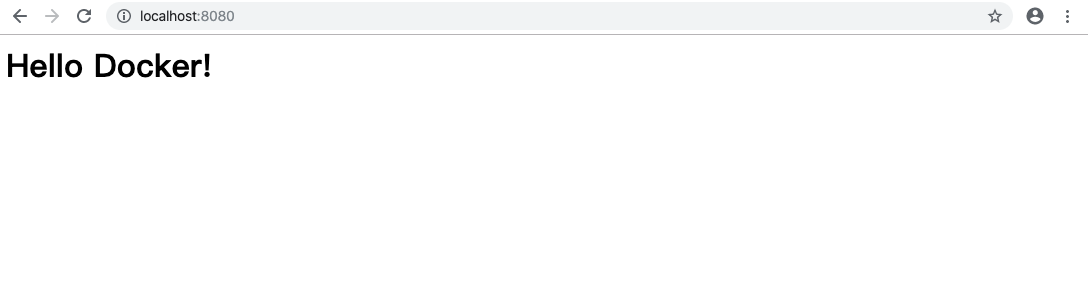
1> docker run -p 8080:80 -d -v $PWD/html:/usr/share/nginx/html nginx 将 nginx container 目录 /usr/share/nginx/html 挂载到本机当前目录下的 html
2> vim html/index.html
1 | <h1>Hello Docker!</h1> |
3> 在本地的修改会反映到 container
创建仅有数据的容器,其它容器通过此容器挂载 volume
docker create -v $PWD/data:/var/mydata --name data-container ubuntu
docker run -it --volumes-from data-container ubuntu /bin/bash
root@6b1c68cb2185:/# cd var/mydata/
root@6b1c68cb2185:/var/mydata# touch hello.txt
root@6b1c68cb2185:/var/mydata# exit
exit
jbn@MacBook-Air ~/Documents/study/docker ls data
hello.txt
# Registry
镜像仓库
docker search whalesay
dokcer pull whalesay
docker run docker/whalesay cowsay Hello Docker!
1 | < Hello Docker! > |
docker tag docker/whalesay jbn/whalesay 产生一个相同但 tag 是 jbn/whalesay 镜像
doker login
docker push jbn/whalesay
# Example
# postgres
step 1: pull image docker pull postgres , pull image with specify version docker pull postgres:11.5
step 2: run container docker run --name some-postgres -e POSTGRES_PASSWORD=mysecretpassword -d postgres
step 3: show status of the container docker ps
step 4: login to the container docker exec -it some_postgres bash
step 5: access postgres use user postgres, run postgres command su postgres
step 6: leave postgres \q
step 7: login out the container exit
step 8: remove container docker rm -f some_postgres